Best Screen Recording Software for Windows & Mac
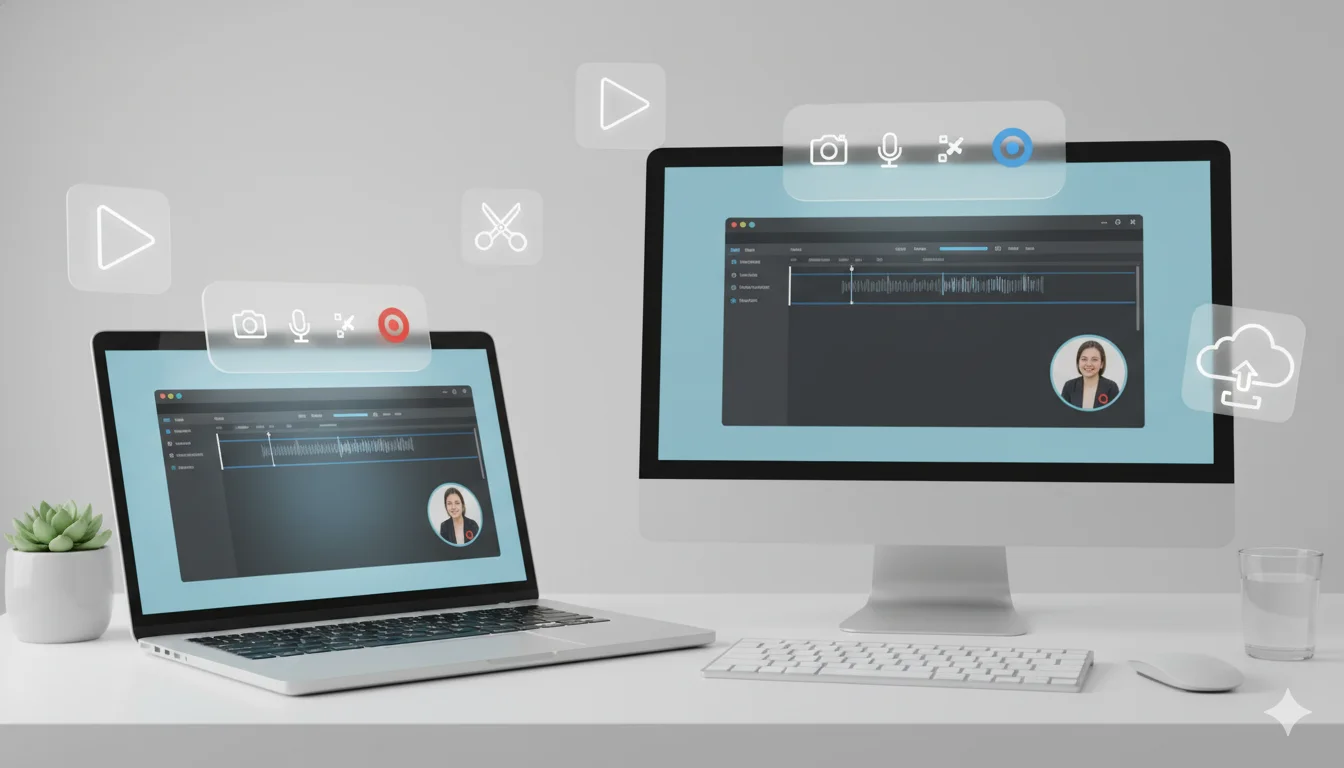
Screen recording is essential for creators, educators, and professional teams. Whether you’re producing tutorials, recording product demos, or capturing bugs for technical support, the right software can significantly improve your workflow and output quality. This guide compares several top screen recording options for Windows and Mac, highlighting their strengths and use cases to help you find the best software for your needs.
Use cases (who needs screen recording and why)
- Course creators & educators: Record lectures, slide walkthroughs, and annotation-driven tutorials.
- Product teams & engineers: Capture bug repro steps, demo new features, or prepare stakeholder walkthroughs.
- Marketing & sales: Create short product highlight videos or personalized outreach.
- Streamers & live presenters: Broadcast gameplay, live coding, or webinars.
- UX & customer support: Annotated quick-fix explanations and voice-over walkthroughs.
Matching the tool to the workflow matters: lightweight recorders win for quick clips and async comms, while editing-focused suites are better for long-form training assets.
Top 6 screen recording tools (quick list)
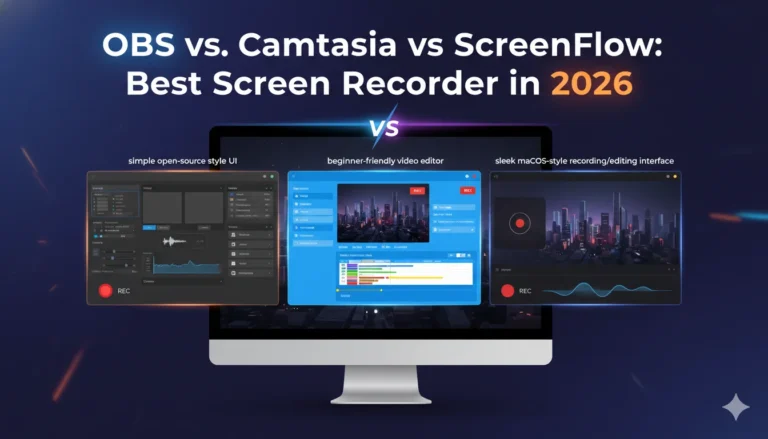
- OBS Studio (Open Source) — powerful, extensible, cross-platform.
- TechSmith Camtasia (Paid) — all-in-one recorder + editor for polished videos.
- Telestream ScreenFlow (Paid, Mac) — native Mac performance with strong editing.
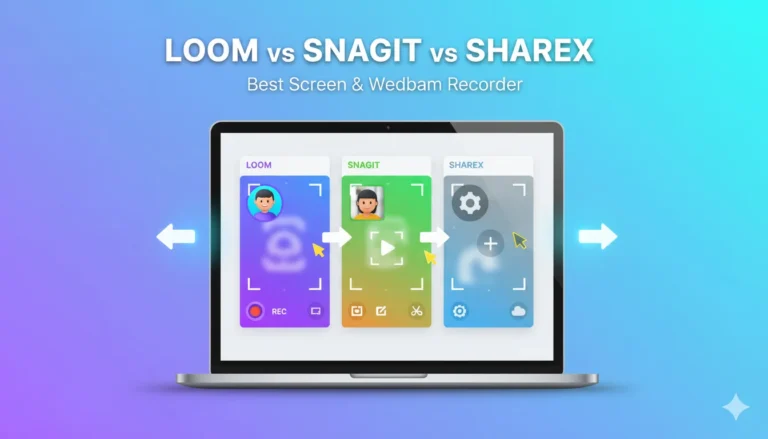
- TechSmith Snagit (Paid) — quick captures, screenshots + light video editing.
- Loom (Freemium) — fast browser/desktop recorder built for async communication.
- ShareX (Free, Windows) — advanced capture, automation, and upload workflows.
(Honorable mentions: Bandicam for lightweight high-performance Windows capture, Audiate/Audacity for audio cleanup, and dedicated DAWs for pro audio.)
In-depth comparison: features, pricing, pros & cons
1) OBS Studio — Best for power users & live streaming
Platforms: Windows, macOS, Linux.
Price: Free, open source.
Key features: Scenes & sources, scene transitions, plugins, virtual camera output, hardware-accelerated encoding, high-quality recording and streaming.
Pros: Highly configurable; no cost; large plugin ecosystem; excellent for streaming + multi-source recordings.
Cons: Steeper learning curve; minimal built-in non-linear editing (requires external editor).
2) Camtasia (TechSmith) — Best for polished training & marketing videos
Platforms: Windows, macOS.
Price: Paid (perpetual or subscription tiers; free trial with watermark). TechSmith offers multiple plan tiers.
Key features: Built-in recorder + full NLE editor, callouts, transitions, captions/transcription, 4K/60fps support, templates.
Pros: All-in-one workflow; friendly timeline editing; great for corporate training.
Cons: Costlier than simple recorders; heavier install and resource use.
3) ScreenFlow (Telestream) — Best for Mac editors and screencasting pros
Platforms: macOS only.
Price: Paid license (one-time with paid upgrades); free trial with limitations.
Key features: High-quality screen capture, multi-source recording (iOS devices included), robust editor, stock media, motion effects.
Pros: Mac-native performance and UI; strong audio and video editing; ideal for polished tutorials.
Cons: macOS only; licensing for major upgrades can add cost.
4) Snagit (TechSmith) — Best for fast, professional screenshots and short clips
Platforms: Windows, macOS.
Price: Paid (one-time / subscription options); free trial.
Key features: Screenshot capture, scrolling capture, short screen recordings, built-in annotation and step-by-step guide generation.
Pros: Extremely fast for documentation; excellent annotation tools; low learning curve.
Cons: Not a full NLE — limited editing for longer videos.
5) Loom — Best for quick async communication and team feedback
Platforms: Web, Windows, macOS, Chrome extension.
Price: Freemium — free tier has limits (video count/length); paid plans add transcription, advanced editing and team features.
Key features: Instant recording and shareable links, viewer analytics, comments/reactions, transcription, and basic trimming.
Pros: Fast sharing workflow; ideal for internal communication and quick demos.
Cons: Free tier limits; not intended for multi-track professional editing.
6) ShareX — Best free alternative for power users on Windows
Platforms: Windows.
Price: Free, open source.
Key features: Multiple capture methods, GIF recording, automated upload workflows, OCR, annotation tools (lightweight).
Pros: Extremely flexible; scriptable workflows; zero cost.
Cons: Interface is utilitarian; learning curve for complex automation.
Pricing at a glance (high level)
- Free / Open source: OBS Studio, ShareX.
- Freemium / SaaS: Loom (free tier with limits; business tiers for advanced features).
- Paid desktop editors: Camtasia, ScreenFlow, Snagit (one-time + paid upgrades or subscriptions depending on vendor).
(Prices and plan names change frequently — always verify current pricing before purchase.)
Related Articles You May Like:
Best Password Manager Software for Beginners (Safe & Easy)
ChatGPT Plus Pricing – Is It Worth Paying in 2026?
Best VPN Services for Privacy & Security (Top Picks for US Users)
Which tool is best for beginners?
Best for beginners: Loom or Snagit.
- Why Loom? Minimal setup, zero post-production required for most use cases, instant shareable links and comments—excellent for quick explainer videos or team updates.
- Why Snagit? Fast, predictable captures with excellent annotation tools for documentation and how-to screenshots; minimal editing knowledge required.
Both lower the cognitive overhead of a full editor and let novices create useful content immediately.
Which tool is best for professionals?
Best for professionals: Camtasia or OBS + external NLE (depending on workflow).
- Camtasia: If you want an integrated record-to-publish pipeline with captions, animations, and templates, Camtasia’s editor is purpose-built for training and marketing teams.
- OBS + NLE (DaVinci Resolve, Premiere Pro): For advanced control, streaming, multi-camera shoots, or very high-fidelity outputs, OBS gives capture flexibility while a dedicated NLE provides editorial depth.
Professionals who need fast turnaround and consistent branding will prefer Camtasia’s single-app workflow; those needing absolute control over encoding, scenes, or live production will prefer OBS paired with a pro editor.
Decision matrix (how to choose)
- Need instant team sharing & comments: Loom.
- You want free and extremely powerful: OBS or ShareX (OBS for cross-platform streaming/recording; ShareX for Windows automation).
- You need a full-featured editor with templates: Camtasia or ScreenFlow.
- Primary use is documentation & annotated screenshots: Snagit.
Final recommendation
For most professionals and content creators I recommend a two-tier approach:
- Primary recommendation (all-rounder): Camtasia — it balances a robust recorder with a friendly, capable editor and workflow features (captions, templates, and 4K support). It’s the fastest path from capture to publish for polished training, marketing, and course work.
- Cost-conscious / power users: OBS Studio (capture) + DaVinci Resolve or your preferred NLE (editing). OBS gives maximum capture control and zero licensing cost; pair it with a free/paid editor for a professional result.
- Quick internal comms / beginners: Loom or Snagit — Loom for video messaging and instant sharing; Snagit for annotated screenshots and short screencasts.
Quick tips for professional results (regardless of tool)
- Record at native resolution when possible; downscale after editing for consistent delivery.
- Use a decent microphone and a quiet room; clean audio makes the biggest perceived quality jump.
- Frame rate matters for motion-heavy content (60fps for demos with fast movement, 30fps for static tutorials).
- Capture separate audio tracks (narration vs system audio) if your tool supports it — easier editing.
- Build a simple template (intro, outro, lower thirds) to speed editing and maintain brand consistency.
Closing note
Choosing a screen recorder depends on what you create and how you deliver it. If your workflow prioritizes speed and team feedback, pick Loom or Snagit. If you need polished courses and brand consistency, choose Camtasia or ScreenFlow (Mac). If you want zero-cost power and live streaming features, OBS is unmatched. Evaluate free trials and sample exports with one representative recording before committing to a paid license.