Best Password Manager Software for Beginners (Safe & Easy)
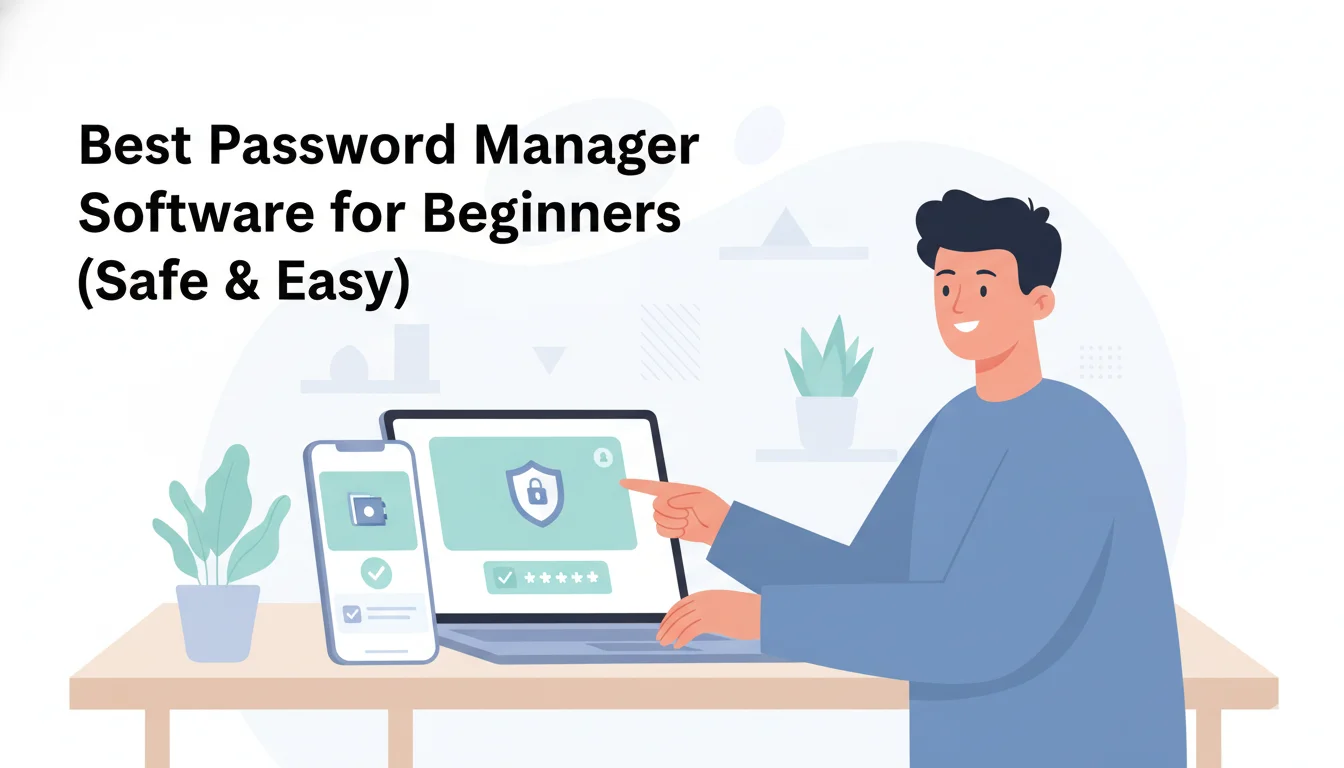
Keeping track of passwords for every account can be a headache, and using the same weak password everywhere is a big security risk. A password manager solves this by creating and storing complex passwords for you, so you only have to remember one. In this guide, we’ll look at the best password manager software for beginners, focusing on options that are secure and easy to use.
Why password managers are important
Most people reuse passwords or choose weak ones because remembering unique, long passwords for dozens of sites is impossible. That behaviour is the single biggest enabler of account takeovers. A password manager:
- Generates cryptographically strong, unique passwords for every account.
- Stores them in an encrypted vault protected by a single master password (or passkey).
- Autofills logins so you don’t type passwords on phishing pages by accident.
- Lets you securely share credentials (family, small teams) without sending plain text.
Using a password manager dramatically reduces risk from credential stuffing (when attackers try leaked passwords across many sites) and humbles the value of a single leaked password. For many beginners the time saved and the increase in safety are immediate and tangible.
Related Articles You May Like:
ChatGPT Plus Pricing – Is It Worth Paying in 2026?
Best VPN Services for Privacy & Security (Top Picks for US Users)
Best Cloud Storage Services for Personal Use (Pricing Comparison)
How password managers work (simple, non-technical)
- Create a vault: You choose a master password (or set up a passkey/biometric on devices). This is the only password you must remember.
- Encryption: All entries are encrypted locally (on your device) before they are synced to the vendor’s servers. This “zero-knowledge” model means the company can’t read your passwords.
- Autofill & capture: When you log in to a site, the password manager can suggest or autofill the correct credentials and optionally offer to save new ones.
- Sync across devices: Encrypted data is synced across your phone, tablet, and computer so your vault is available everywhere.
- Extras: Many managers add features like password health checks, breach monitoring, secure notes, two-factor authentication (2FA) support, passkeys, and secure file storage.
Top 5 password manager options
1Password
Why beginners like it: polished interface, simple vault/family sharing, and thoughtful beginner safety nudges (like phishing-site autofill checks). 1Password actively adds anti-phishing measures to warn or block autofill when the page URL doesn’t match the saved site.
Security features
- Zero-knowledge encryption and local encryption keys.
- Watchtower-style breach monitoring and password health insights.
- Passkeys support and device biometrics.
Pricing (typical)
- Individual and Family plans; individual plans often billed annually (example shown on official pricing pages).
Pros
- Extremely user-friendly onboarding.
- Strong phishing protections and password health UI.
- Great family-sharing controls.
Cons
- Not the cheapest option for solo users.
- Some advanced features gated behind higher tiers.
Bitwarden
Why beginners like it: simple, transparent, and the most budget-friendly solid option. Bitwarden’s code is open source and it offers a capable no-cost service — great for people who want low cost without sacrificing security.
Security features
- Open source with independent audits.
- End-to-end (zero-knowledge) encryption.
- Cross-platform apps and browser extensions; optional self-hosting.
Pricing (typical)
- A generous no-cost service; low-cost Premium and Families plans (Bitwarden recently updated prices to remain highly competitive).
Pros
- Excellent value; strong security pedigree.
- Option to self-host if you prefer full control.
- Good feature set for families and small teams.
Cons
- Interface is more utilitarian than commercial alternatives.
- Some convenience features (advanced 2FA or vault analytics) require paid plan.
LastPass
Why beginners like it: long history, easy browser extensions and mobile apps, straightforward pricing tiers. It’s still a popular pick for everyday users.
Security features
- Zero-knowledge architecture and encrypted vaults.
- Password health checks and secure password sharing.
Pricing (typical)
- no-cost service and a Premium plan aimed at individuals; family/business tiers also available. Pricing and promotions vary.
Pros
- Simple onboarding and autofill behavior that’s beginner friendly.
- Large user base and cross-platform support.
Cons / Cautions
- LastPass experienced high-profile breaches in the past, which remain a concern for some users — the company has taken remediation steps since then. If historical breach concerns worry you, research current audits and changes before buying.
Dashlane
Why beginners like it: vivid, easy UI and convenient extras like built-in VPN (for some plans) and dark-web monitoring — attractive for users who want an “all-in-one” consumer security bundle.
Security features
- Zero-knowledge vault encryption.
- Dark web monitoring and (on some plans) a VPN for public Wi-Fi protection.
- Password health dashboard.
Pricing (typical)
- no-cost service with limits; Premium plans that combine VPN and breach monitoring at consumer-oriented prices.
Pros
- Very polished UX and useful extras for non-technical users.
- Helpful password health and breach alerts.
Cons
- More expensive than open-source or budget alternatives if you want VPN + monitoring.
- Some users prefer separate, dedicated VPNs rather than bundled ones.
Keeper
Why beginners like it: Keeper focuses on straightforward password storage, secure sharing and has helpful add-ons; often runs promotions that reduce first-year costs. Keeper emphasizes zero-knowledge encryption.
Security features
- Strong zero-knowledge encryption and enterprise features for teams.
- Secure file storage and role-based sharing for families and businesses.
Pricing (typical)
- Competitive per-user/month personal plans; promotions sometimes reduce annual first-year costs.
Pros
- Robust sharing and enterprise-grade controls (useful if you expect to scale).
- Frequent discounts for new users.
Cons
- Add-ons (like larger secure storage) can raise the total cost.
- Interface is good but not as slick as some consumer-first rivals.
Pricing, security features, pros & cons — quick comparison
(Note: prices and feature packaging change frequently — check vendor pages before buying. The citations above link to the vendors and reliable reviews.)
Best password manager for beginners
If you’re new to password managers, two simple options stand out depending on priorities:
- Easiest, most beginner-friendly (paid): 1Password — excellent onboarding, family sharing, and recent anti-phishing autofill protections that help prevent mistakes. It’s built to reduce user errors and explain security in plain language.
- Best budget-friendly option: Bitwarden — minimal cost, open-source transparency, and strong security defaults. For someone who wants strong protection with the lowest recurring fee (or the ability to self-host), Bitwarden is the practical pick.
Both provide cross-platform apps, browser extensions, and password generators. If budget is no barrier, 1Password’s extra polish and family controls give it the edge for a non-technical household. If you want the best balance of security and price, Bitwarden wins.
How to pick and set up the right manager (quick checklist for beginners)
- Start with trial period: Try the no-cost service or trial to test autofill and mobile apps.
- Choose a strong master password or passkey: Use a long passphrase or passkey; enable device biometrics for convenience.
- Enable 2FA for the manager: Use an authenticator app or hardware key to protect the vault.
- Import and tidy slowly: Import saved passwords from your browser, then run a “password health” scan and replace reused/weak ones gradually.
- Enable breach monitoring: If offered, turn on breach alerts so you’re notified of exposed credentials.
- Back up recovery codes: Store account recovery info in a secure place (safe or physical note), but not as plain text online.
Final recommendation
For beginners in the US and UK: if you want the simplest user experience and excellent family features, start with 1Password (paid) and use the 14–30 day trial to test compatibility with your devices. If your top concern is cost without sacrificing security, start with Bitwarden (free or low-cost Premium) and consider upgrading if you want extra convenience features or longer support. Try one product for a couple of weeks, export nothing until you’re comfortable, and make sure to enable two-factor authentication on your vault.
Quick safety reminders
- Never reuse passwords across important accounts (email, banking).
- Don’t store your master password in a browser or in plain text.
- Keep your devices updated and use device-level security (biometrics or PINs).