Best AI Photo Restoration Software (Free vs Paid) – 2026 Guide
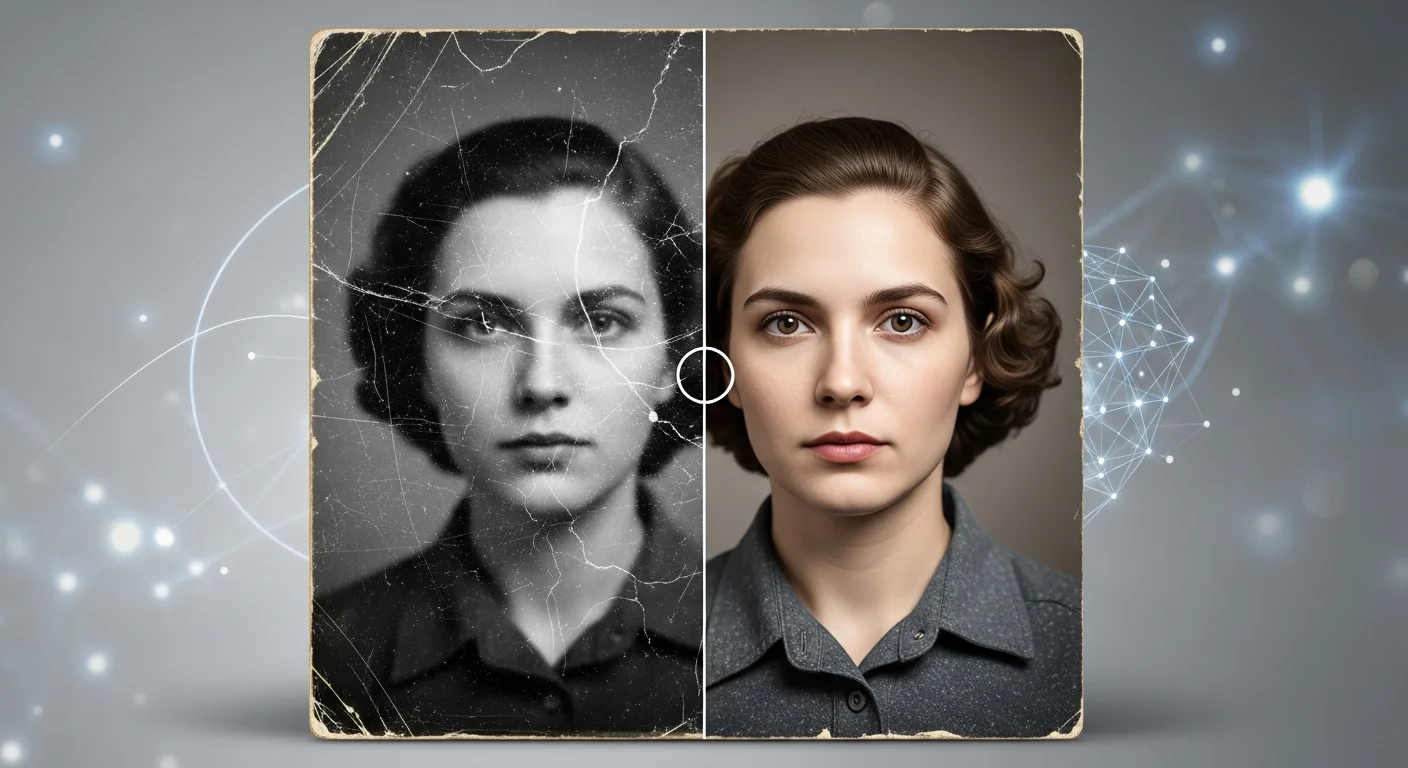
Old photos often suffer from scratches, blur, and low resolution, which can hide important details and faces. Modern AI photo restoration software can now automate the process of recovering those details, removing scratches, and even adding color to black-and-white images. In this guide, we’ll compare the best photo restoration services available in 2026 to help you find the right option for your project.
What is AI photo restoration?
AI photo restoration uses machine learning (usually convolutional neural networks or diffusion models) trained on large datasets of damaged and clean images. The models learn to:
- Remove scratches, dust, and stains.
- Reconstruct lost detail and sharpen faces.
- Denoise film grain and compression artifacts.
- Colorize black-and-white or faded photos.
- Upscale low-resolution scans while preserving detail.
Results vary by model, input quality, and user control. Some tools are “one-click” cloud options while others give advanced sliders and local processing for privacy and higher quality.
Related Articles You May Like:
Top WordPress Hosting in the USA for 2026: Fast, Secure, and Easy for Beginners
Best Screen Recording Software for Windows & Mac (Free & Paid)
Best Password Manager Software for Beginners (Safe & Easy)
Top AI photo restoration software (2026) — reviews
Below are seven strong choices that cover novice to pro workflows. Each entry has features, pricing, pros, cons, and the best use case.
VanceAI — VanceAI Photo Restorer
Features: automatic scratch/dust removal, face enhancement, colorize, batch processing, desktop and web apps. It includes an upscaler and denoiser in the same suite.
Pricing: no-cost tier with limited credits; subscription tiers and pay-as-you-go credit packs (see site for current plans).
Pros: good one-click results, batch restore for many scanned photos, online + desktop options.
Cons: web results can occasionally oversmooth fine texture; heavier processing may require paid credits.
Best use case: users with photo archives who want fast batch restoration without learning complex software.
Remini — Remini (mobile-focused)
Features: portrait face sharpening, deblur, color fixes, video enhancement in some plans; mobile first with simple UI.
Pricing: no-cost tier with ads/limits; Pro subscriptions (weekly/monthly/annual) for higher throughput and no ads. Pricing varies by region; check the app stores.
Pros: extremely easy on mobile, fast face improvements for single photos, good for casual users.
Cons: limited control, can produce unnatural artifacts on non-portrait images; subscription model can be costly if you need many images.
Best use case: quick fixes to scanned portraits on a phone.
Topaz Labs — Topaz Photo AI (includes Gigapixel-like upscaling)
Features: local desktop processing, multiple AI models (sharpen, denoise, remove blur), precise controls, one-time or subscription licensing depending on product bundle. Ideal for high-quality upscaling and archival work.
Pricing: historically offers both one-time and subscription options; check current Topaz site for 2026 pricing.
Pros: excellent image fidelity, runs locally (privacy + no upload), advanced control for pros.
Cons: steeper learning curve, needs capable hardware for fastest results.
Best use case: photographers and archivists who want the best local restoration and upscaling quality.
MyHeritage — MyHeritage Photo Enhancer & Photo Repair
Features: face-focused enhancement and a dedicated “Photo Repair” tool to fix torn/scratched photos; colorize and animate features available too. Often used by family history researchers.
Pricing: trial period credits; some features require a MyHeritage account or paid credits/subscription for larger batches.
Pros: engineered to work well on portraits and family photos, easy to use, integrates with family tree workflows.
Cons: limited non-portrait controls; privacy implications if you upload sensitive family photos (read the service terms).
Best use case: genealogy enthusiasts restoring old family portraits and documents.
DeOldify (open source) — DeOldify (community / DIY)
Features: open-source colorization and restoration models available as Colab notebooks or self-hosted code; highly tweakable by users who can run notebooks or local builds.
Pricing: no-cost (open-source); compute costs apply if you run it on paid cloud GPUs.
Pros: no licensing cost, community-driven, flexible if you can run or tune models.
Cons: requires technical skills to run/manage models; results depend on your parameter choices and compute.
Best use case: tinkerers and technically skilled users who want full control and no subscription fees.
Let’s Enhance — Let’s Enhance (cloud)
Features: cloud upscaling, color and texture correction, batch processing, credit/subscription model. Targets photographers and ecommerce but works for restorations.
Pricing: initial credits; paid plans start around low-double digits per month or credit packs for pay-as-you-go.
Pros: natural looking results without obvious “AI” artifacts, simple interface.
Cons: cloud costs add up for large archives; less localized control than desktop tools.
Best use case: users wanting high-quality cloud upscaling and color correction with minimal setup.
Adobe Photoshop — Neural Filters & Photo restoration options
Features: “Photo Restoration” workflows using Neural Filters, colorize, content-aware healing, layer-based editing for manual corrections — combines AI with traditional retouching. Requires Creative Cloud subscription.
Pricing: part of Adobe Creative Cloud photography plans (monthly/annual).
Pros: industry standard, full manual control for precise restoration, best for mixing AI and hand retouching.
Cons: subscription cost, steeper learning curve for beginners.
Best use case: advanced restorers and professionals who need pixel-level control plus AI assists.
Comparison table — Free vs Paid
Notes: “no-cost tier” usually means limited credits, watermarking, or usage caps. Paid tiers remove limits and add batch features, higher quality models, or desktop/offline processing.
Which AI tool is best for beginners?
For sheer ease-of-use and predictable results, a cloud service with an intuitive UI is best. My recommendation for beginners:
- If you want one-click portrait fixes on a phone: Remini (easy, fast).
- If you prefer a browser-based, simple batch workflow for many scanned photos: VanceAI or Let’s Enhance — both give good automatic results with minimal tweaking.
Beginners who plan to learn more should consider Adobe Photoshop (trial + tutorials) because it pairs AI with manual tools you’ll eventually need for tricky restores.
Final recommendation
Choose based on volume, budget, and control:
- Large archive / privacy concerns / highest quality: Use a local desktop solution such as Topaz Photo AI or Photoshop. Local processing protects photos and gives finer control.
- Small batches, fast results, minimal learning: Try VanceAI or Let’s Enhance for cloud-based batch processing, or Remini for mobile portrait touchups. These are friendly for non-technical users.
- Lowest cost / maximum control: If you’re technical, DeOldify (open-source) lets you customize models and run without subscription fees — you’ll pay only for compute if you use cloud GPUs.
Practical workflow (recommended)
- Scan photos at the best resolution you can (300–600 DPI for prints).
- Run a quick one-click restore on a cloud tool to see if results meet your needs (VanceAI / Let’s Enhance).
- For tricky areas (severe tears, missing parts), use Photoshop or Topaz locally and finish by hand.
Closing notes
AI has dramatically reduced the time and skill needed to restore photos, but no tool is perfect. Automated results are excellent for many images, yet manual retouching still matters for archival prints or irreplaceable family heirlooms. Test no-cost tiers where available, compare final prints, and always keep the original scans safe before you edit.